

Overview
TheCometChatSearch component is a powerful and customizable search interface that allows users to search across conversations and messages in real time. It supports a wide variety of filters, scopes, and customization options. CometChatSearch helps users find messages, conversations, media, and more through an intuitive and filterable search experience. It can be embedded in multiple contexts — as part of the conversation list, message header, or as a full-screen search experience.
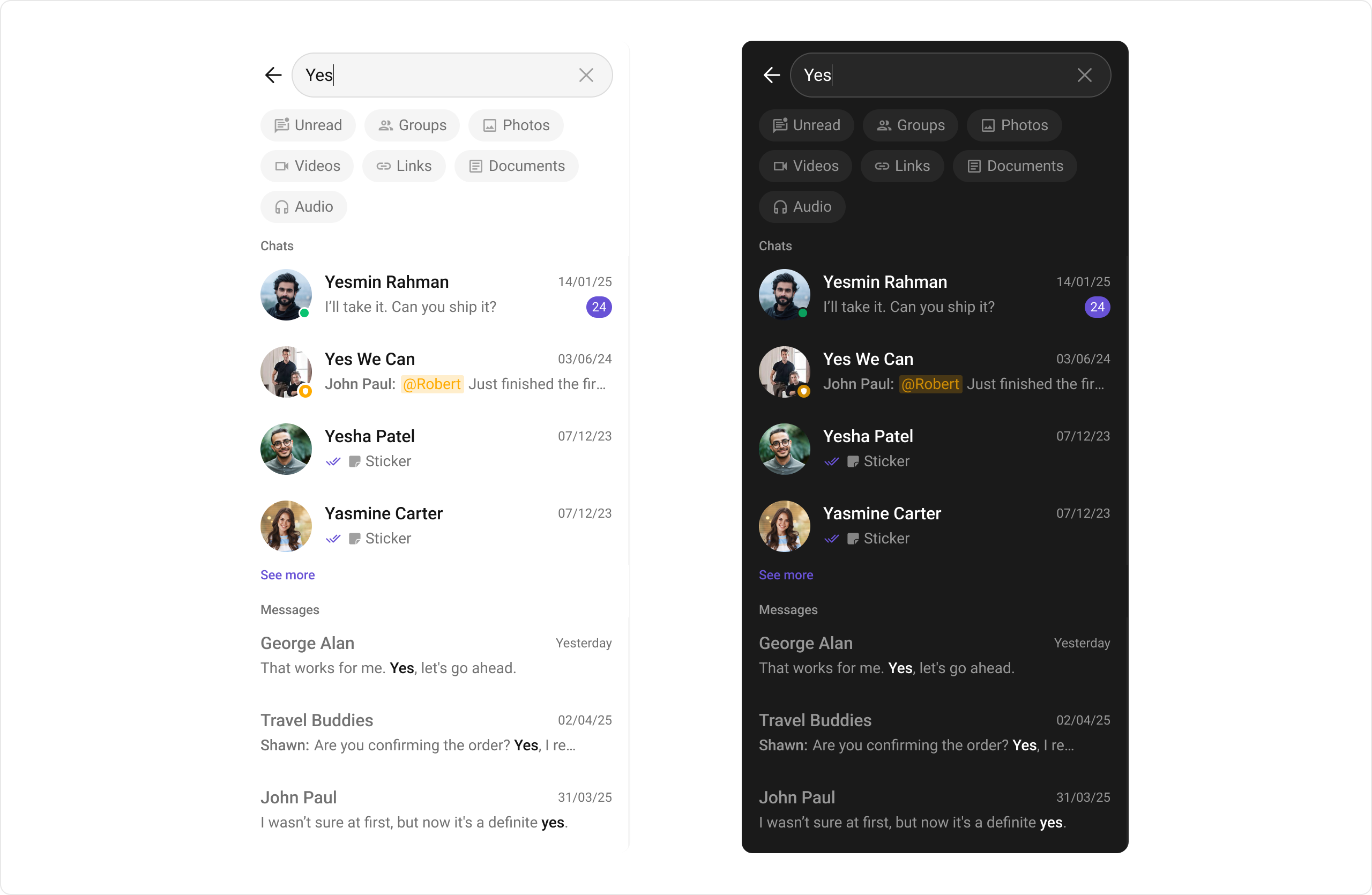
Usage
Integration
CometChatSearch, as a composite Component, offers flexible integration options, allowing it to be launched directly via button clicks or any user-triggered action.
The following code snippet exemplifies how you can seamlessly integrate the CometChatSearch component into your application.
- Swift
Actions
1. onConversationClicked
onConversationClicked is triggered when you click on a Conversation from the search result. The onConversationClicked action doesn’t have a predefined behavior. You can override this action using the following code snippet.
- Swift
2. onMessageClicked
onMessageClicked is triggered when you click on a Message from the search result. The onMessageClicked action doesn’t have a predefined behavior. You can override this action using the following code snippet.
- Swift
3. onBack
‘onBack’ is triggered when you click on the back button of the search component.- Swift
4. onError
This action doesn’t change the behavior of the component but rather listens for any errors that occur in the Search component.- Swift
5. onEmpty
This action doesn’t change the behavior of the component but rather listens for the empty state of the Search component.- Swift
Filters
1. ConversationsRequestBuilder
You can set theConversationsRequestBuilder in the Search Component to filter the search result. You can modify the builder as per your specific requirements with multiple options available to know more refer to ConversationRequestBuilder.
- Swift
2. MessagesRequestBuilder
You can set theMessagesRequestBuilder in the Search Component to filter the search result. You can modify the builder as per your specific requirements with multiple options available to know more refer to MessagesRequestBuilder.
- Swift
Events
Events are emitted by aComponent. By using event you can extend existing functionality. Being global events, they can be applied in multiple locations and are capable of being added or removed.
The CometChatSearch component does not produce any events.
Customization
To fit your app’s design requirements, you can customize the appearance of theCometChatSearch component. We provide exposed methods that allow you to modify the experience and behavior according to your specific needs.
Style
Using Style you can customize the look and feel of the component in your app, These parameters typically control elements such as the color, size, shape, and fonts used within the component.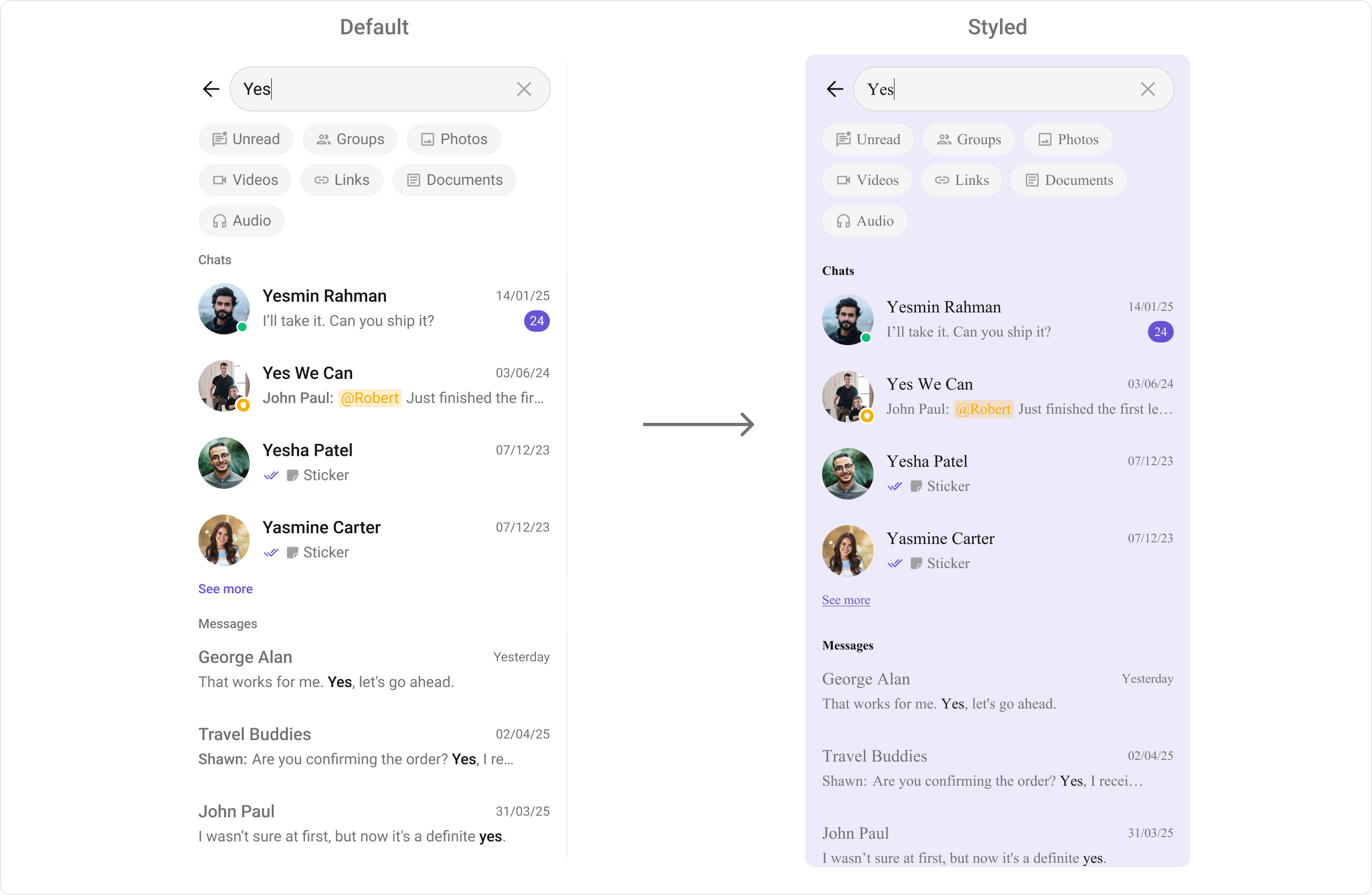
- Swift
Functionality
These are a set of small functional customizations that allow you to fine-tune the overall experience of the component. With these, you can toggle the visibility of UI elements. Below is a list of customizations along with corresponding code snippets| Property | Description | Example |
|---|---|---|
| user | Restrict search to a specific user chat | search.user = user |
| group | Restrict search to a group | search.group = group |
| hideUserStatus | Hide online/offline indicator | search.hideUserStatus = true |
| hideGroupType | Hide group type icon | search.hideGroupType = true |
| searchFilters | Filters like “Messages”, “Media” | search.set(searchFilters: [SearchFilter] = [.unread, .groups, .photos]) |
| initialSearchFilter | Default tab/filter | search.initialSearchFilter = .messages |
| searchIn | Restrict search: messages / conversations / both | `search.set(searchIn: [SearchScope] = [.messages]) |
| loadingStateView | Custom loader | search.set(loadingStateView: spinner) |
| emptyStateView | Custom empty result view | search.set(emptyStateView: emptyView) |
| errorStateView | Custom error UI | search.set(errorStateView: errorView) |
Advanced
For advanced-level customization, you can set custom views to the component. This lets you tailor each aspect of the component to fit your exact needs and application aesthetics. You can create and define your views, layouts, and UI elements and then incorporate those into the component.conversationListItemView
With this function, you can assign a custom list item view to an conversation in the search result. For more information, refer to the itemView prop of theCometChatConversations component.
conversationLeadingView
With this function, you can assign a custom leading view of an conversation in the search result. For more information, refer to the leadingView prop of theCometChatConversations component.
conversationTitleView
With this function, you can assign a custom title view to an conversation in the search result. For more information, refer to the titleView prop of theCometChatConversations component.
conversationSubtitleView
With this function, you can assign a custom subtitle view to an conversation in the search result. For more information, refer to the subtitleView prop of theCometChatConversations component.
conversationTrailingView
With this function, you can assign a custom trailing view to an conversation in the search result. For more information, refer to the trailingView prop of theCometChatConversations component.
messageListItemView
With message item view functions, you can assign custom views to different types of messages in the search result. For more information, refer to the itemView prop of theCometChatMessages component.
Here’s how you can override the default message item view with a custom one for text messages:
- Swift
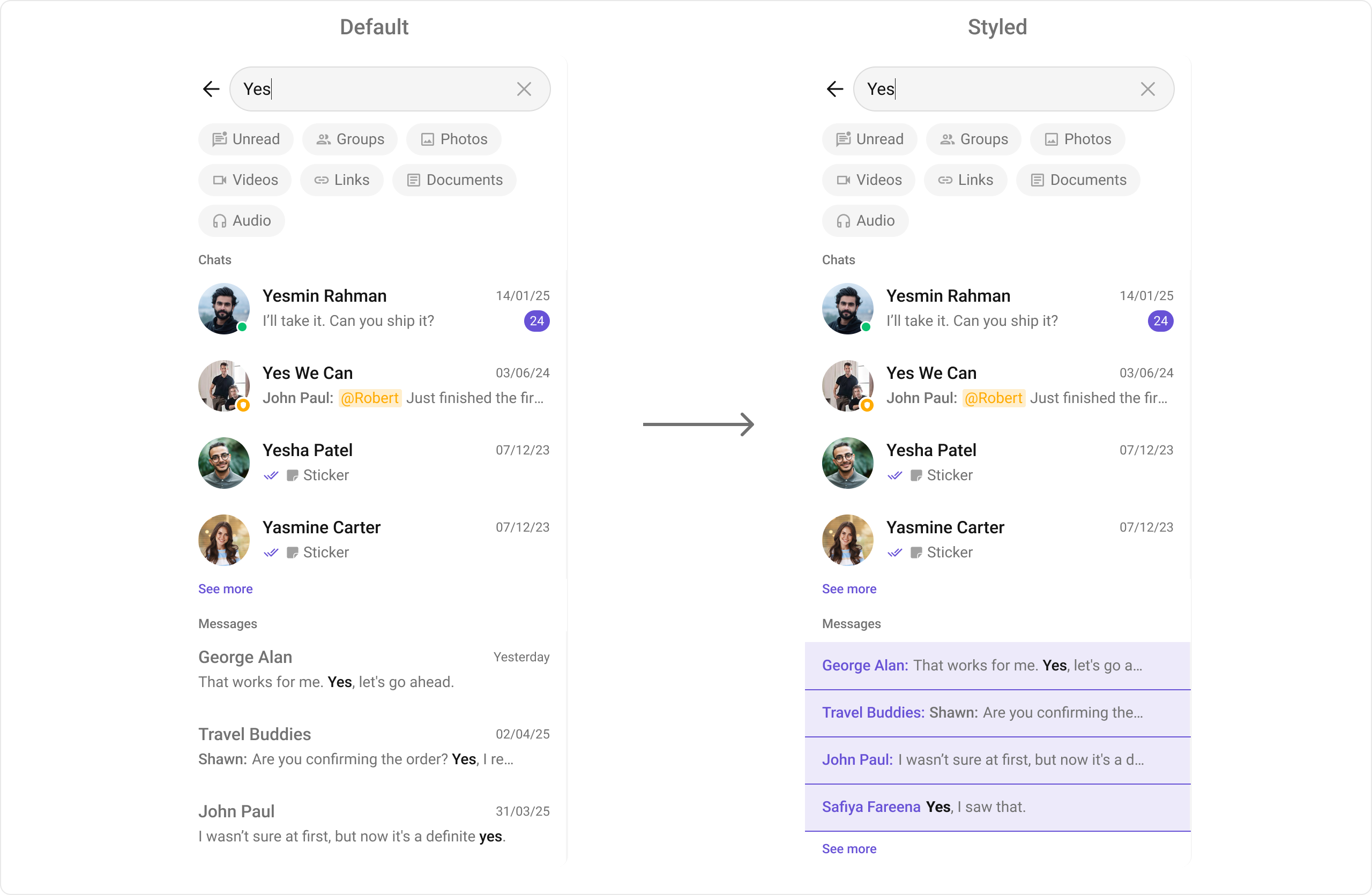
- code for custom view:
- Swift
| Function | Message Type |
|---|---|
| listItemViewForImage | Image Message |
| listItemViewForVideo | Video Message |
| listItemViewForAudio | Audio Message |
| listItemViewForDocument | Document Message |
| listItemViewForLink | Link Message |
DateTime Formatters
1. setDateTimeFormatter
By providing a custom implementation of the DateTimeFormatterCallback, you can configure how time and date values are displayed. This ensures consistent formatting for labels such as “Today”, “Yesterday”, “X minutes ago”, and more.- Swift
Text Formatters
setTextFormatters
This method enables developers to define and apply text formatters that dynamically modify or transform message content before rendering it in the UI. Text formatters can be used for purposes such as:- Automatically converting URLs into clickable links
- Applying Markdown or rich text styling
- Replacing certain words or patterns with emojis or predefined text
- Censoring specific words for moderation